Introduction to Operating Systems
Every time you switch on your computer, you see a screen where you can perform different activities like write, browse the internet or watch a video. What is it that makes the computer hardware work like that? How does the processor on your computer know that you are asking it to run a mp3 file?
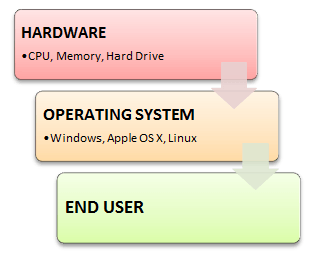
Well, it is the operating system or the kernel which does this work. A kernel is a program at the heart of any operating system that takes care of fundamental stuff, like letting hardware communicate with software.
So, to work on your computer, you need an Operating System(OS). In fact, you are using one as you read this on your computer. Now, you may have used popular OS’s like Windows, Apple OS X but here we will learn what Linux is and what benefits it offers over other OS choices.
-
scheduling
-
schedule the processes which are running on your computer
-
sharing resources
-
-
prevent two processes writing to the same location on disk at the same time
-
security
-
authentication
-
force login using ssh
-
-
authorization
-
prevent a not authorized user to locate your personal files
-
-
communicating with hardware
-
using interrupts
-
Summarized, an O(perating) S(ystem) is software which is a layer between the user-software and the hardware which is responsible for managing all the resources, processes and such
Introducing UNIX
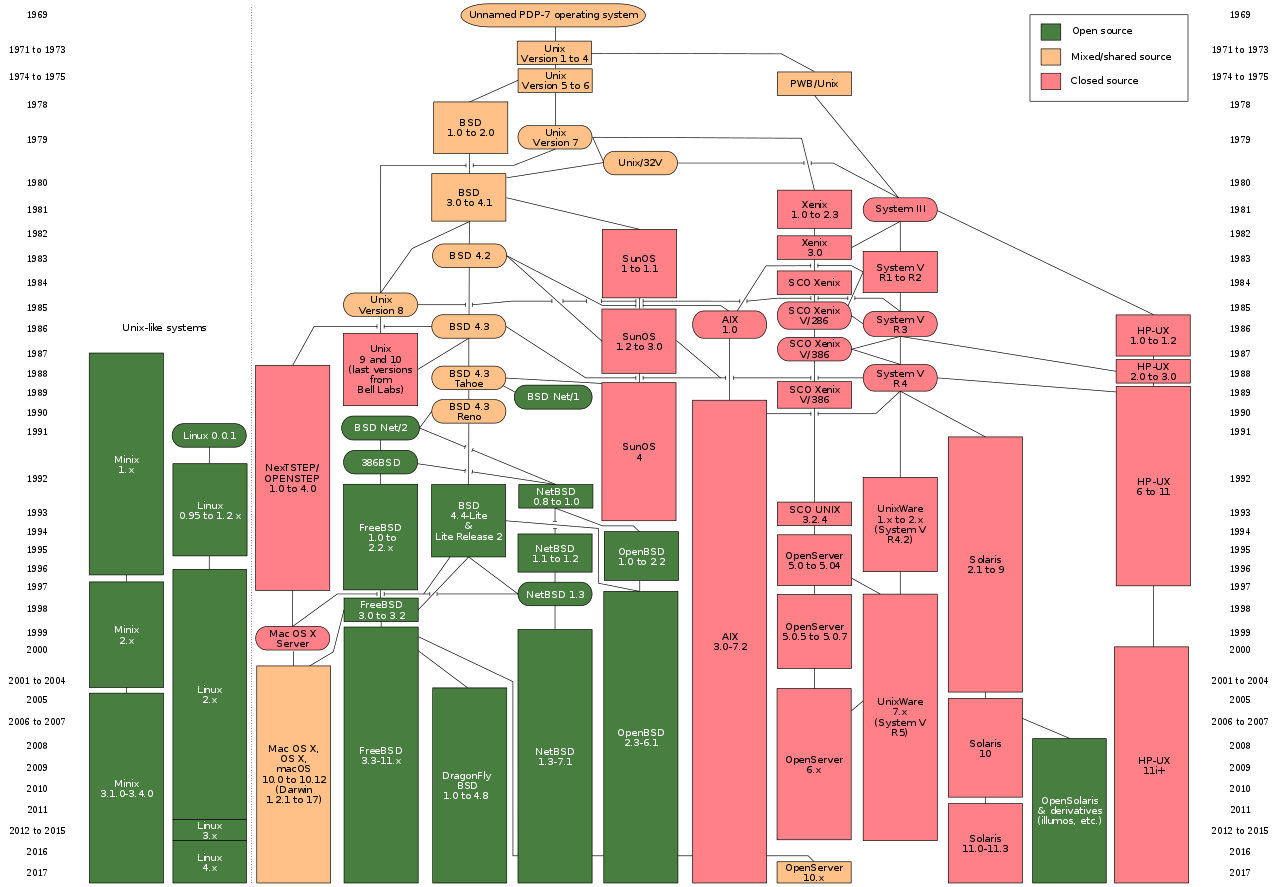
Unix is a family of multitasking, multiuser computer operating systems that derive from the original AT&T Unix, development starting in the 1970s at the Bell Labs research center by Ken Thompson, Dennis Ritchie, and others
Initially intended for use inside the Bell System, AT&T licensed Unix to outside parties in the late 1970s, leading to a variety of both academic and commercial Unix variants from vendors including University of California, Berkeley (BSD), Microsoft (Xenix), IBM (AIX), and Sun Microsystems (Solaris). In the early 1990s, AT&T sold its rights in Unix to Novell, which then sold its Unix business to the Santa Cruz Operation (SCO) in 1995.[4] The UNIX trademark passed to The Open Group, a neutral industry consortium, which allows the use of the mark for certified operating systems that comply with the Single UNIX Specification (SUS). As of 2014, the Unix version with the largest installed base is Apple’s macOS.[5]
Unix systems are characterized by a modular design that is sometimes called the "Unix philosophy". This concept entails that the operating system provides a set of simple tools that each performs a limited, well-defined function,[6] with a unified filesystem as the main means of communication,[3] and a shell scripting and command language to combine the tools to perform complex workflows. Unix distinguishes itself from its predecessors as the first portable operating system: almost the entire operating system is written in the C programming language, thus allowing Unix to reach numerous platforms.[7]
Introducing Linux
Simple said, Linux is the port for UNIX from the big machines to the desktop of the end user
It is started, designed and still maintained the Linus Torvalds, a Finnish hero which started the development of Linux in 1992
The Linux Kernel
The entire Linux kernel is opensource and can be found and introspected at: The Linux Kernel project
Some definitions
-
the admin user of a UNIX/Linux machine. It is the first created user
-
The founder of Linux
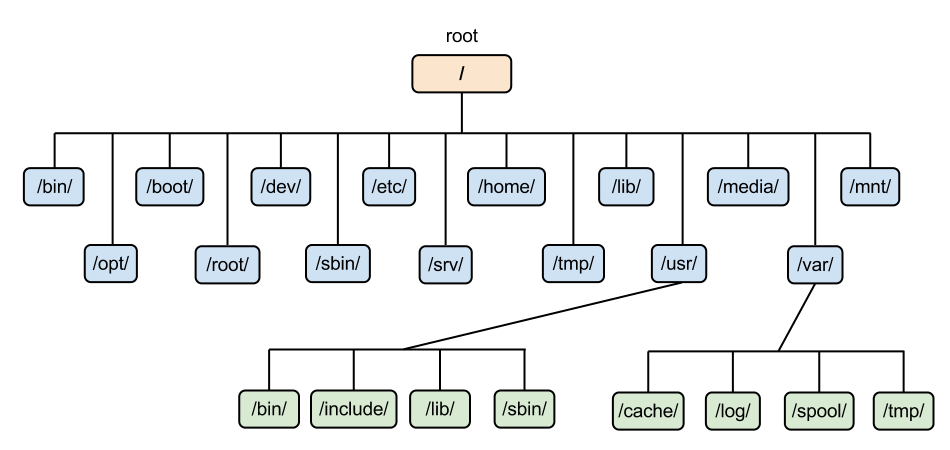
The Virtual FileSystem
Introducing how to talk to Linux
Using the Shell
When you are at the beach you will find shells. You cannot see the core (now called kernel) but you look at the shell. This shell is a protection layer between you and the kernel.
The same principle applies for Linux. When you start a terminal you are in a so called shell . Using this terminal you can talk to the kernel through the shell
The shell validates if you can do things or not using the sytem call interface we will see later on.
Starting the terminal means starting a shell.
And … there is also a way to have a remote shell to another remote host. That program in Linux is called ssh (Secure Shell)
Secure … since it uses encryption to encrypt the data (username, password and commands) you pass through your terminal to the remote host
So … let’s get into SSH
Secure Shell (SSH)
Using the ssh utility we can login to a Linux host.
In Linux the command to run is ssh
In Windows you might have to install Putty In fact, we will do that for the upcoming exercise
Using Secure Shell
To connect to a host do the following:
$ ssh johndoe@angrynerds.carpago.nljohndoe@angrynerds.carpago.nl's passwordThen, enter your password
Welcome to Ubuntu 14.04.4 LTS (GNU/Linux 3.13.0-77-generic x86_64)

 * Documentation:  https://help.ubuntu.com/

  System information as of Mon Jul  9 21:59:40 EDT 2018

  System load:  0.08               Processes:              98
  Usage of /:   71.7% of 58.93GB   Users logged in:        0
  Memory usage: 36%                IP address for eth0:    37.139.27.57
  Swap usage:   0%                 IP address for docker0: 172.17.0.1

  Graph this data and manage this system at:
    https://landscape.canonical.com/

259 packages can be updated.
178 updates are security updates.

New release '16.04.4 LTS' available.
Run 'do-release-upgrade' to upgrade to it.

Last login: Thu Jun 28 03:58:26 2018 from 80.253.212.76

johndoe@angrynerds.carpago.nl: ~$
The last line of the reply is the so called prompt
The prompt means that Linux is waiting for you what to do next … in this case entering a so called utility command might be possible.
Useful commands
-
List the contents of the folder from which it is runs
-
Syntax: ls
-
Example
-
ls -l (long list)
-
ls -a (all)
-
-
Create a directory
-
Syntax: mkdir <directory_name>
-
Example: mkdir student (creates directory student)
-
Example: mkdir /tmp/tools (creates a directory in /tmp)
-
Print the content of a file
-
Syntax: cat <filename>
-
Example: cat /var/log/syslog
-
-
Print the content of a file IN REVERSE ORDER
-
Syntax: cat <filename>
-
Example: cat /var/log/syslog
-
-
Create a file with no content (yet) or to change the filedate to LocalDate.now() :-)
-
Syntax: touch <filenam>
-
Example: touch inputfile.txt
-
Copy a file from one location to another
-
Syntax: cp <sourcefile> <destinationfile>
-
Example: cp input.txt output.txt
-
Copies file input.txt to output.txt
-
-
move a file from one location to another
-
Syntax: mv <sourcefile> <destinationfile>
-
Example: mv input.txt output.txt
-
Movies file input.txt to output.txt
-
-
change directory
-
Syntax: cd <dirname>
-
Example: cd /tmp
-
Goes to the /tmp dir
-
A directory in Linux is the same as the so called map in Windows
-
print working directory / current directory
-
Syntax: pwd
-
Example: pwd
-
to show the manual of a command
-
Syntax: man <command>
-
Example: man ls | man cd
-
Shows the manual(s) of the ls and the cd command
-
-
The same almost as the info command
| Very handy to use for starters in Linux |
-
to show the current user (you) to the console
-
Syntax: whoami
-
Example: whoami
-
Basic Calculator
-
Syntax: bc
-
Example: bc
-
It searches the given file for lines containing a match to the given strings or words
-
Syntax: grep word filename
-
Example: grep m file2
-
Example: grep -i <string> <filename>
-
Finds string case-insensitive in filename
-
-
Not Linux but related to grep and very handy
-
Finds a String in a git enabled directory
-
Syntax: git grep <string> git grep -E "<regular expression>"
-
To show the tail (last part) of a file
-
Syntax: tail <filename>
-
Example: tail /var/log/syslog
-
Options: -f to keep following a file: $ tail -f /var/log/syslog
-
Prints a text on the standard output
-
However in an interactive script, echo passes the message to the user through terminal
-
Syntax: echo message
-
Example: echo hello class
-
Report disk usages of file system
-
Useful for user as well as System Administrator to keep track of their disk usages
-
Syntax: df
-
Estimate files space usage
-
df only reports usage statistics on file systems, while ‘du‘, on the other hand, measures directory contents
-
Shows the process(es)
-
It is a built in shell command that lets you assign name for a long command or frequently used command.
-
Syntax: alias aliasname command
-
Example: alias q=ls-l
-
The “uname” command stands for Unix Name, print detailed information about the machine name, Operating System and Kernel.
-
Switch User
-
Syntax: su <other user name>
-
Example: su ajansen
-
Changes from current user to ajansen on the Linux machine
-
-
To change the current user password
-
Syntax: passwd
-
to print the current date and time to the console
-
Syntax: date
-
Example to set date
-
date - -set=‘14 may 2013 13:57’
-
-
to print the current month calendar to the console
-
Syntax: cal
-
Syntax: cal <month> <year> // to print the month and year’s calendar
-
to clear the screen
-
To edit a file
-
To see the tree structure of the directory you are in now
-
Explain what the mask here is …
-
More on this very handy Linux manual
Exercise Linux commands
During this exercise we will get familiar with using Linux commands
In this exercise we will login to the Digital Ocean Virtual Host of the trainer with your userid and perform the following tasks
-
Install Putty to have a ssh client
-
Create connection to the host using the hostname, userid and password supplied by the trainer
-
Login
-
Show the contents of the (possibly empty) directory
-
Create a (sub) directory in your home dir
-
Create a file in that new dir
-
Show the contents of the directory
-
Open that file using vim and add some text to it
-
Copy the file to a different filename and directory
-
Move the file to a different directory
-
Check how much disk space there is left
-
print the current working directory
-
remove the file you just created
-
change your password
-
logoff
Credits and Resources
-
Door Eraserhead1, Infinity0, Sav_vas - Levenez Unix History Diagram, Information on the history of IBM’s AIX on ibm.com, CC BY-SA 3.0, https://commons.wikimedia.org/w/index.php?curid=1801948